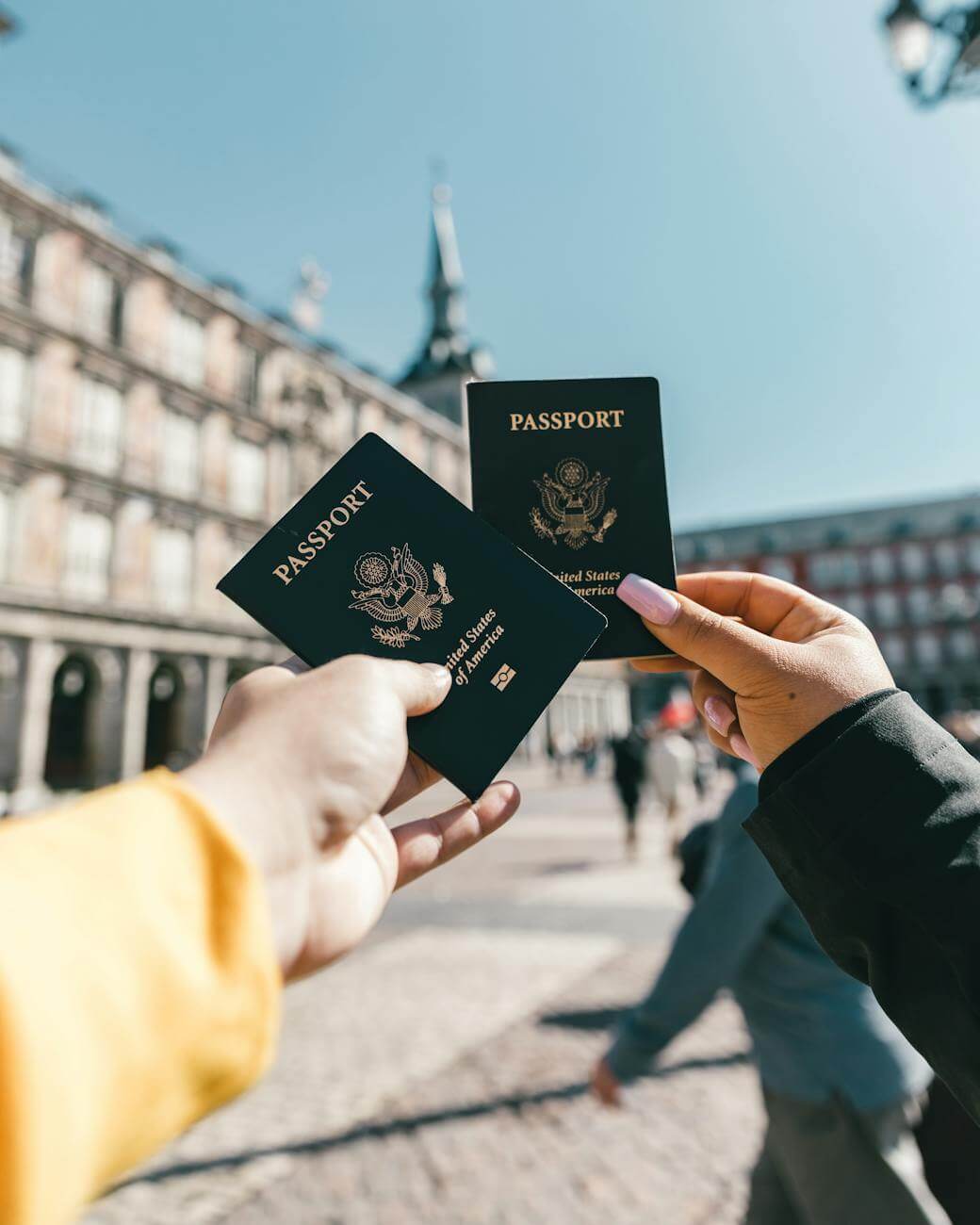
Reading the chip inside an e-passport should take a few seconds. The user scans the photo page, taps the passport against the phone, and the app pulls verified data straight from the chip. In real life, many teams see a frustrating pattern: the scan works for some users and fails for others, often with vague messages like "Tag connection lost" or "Authentication failed."
The good news is that most failures come from a short list of causes, and nearly all of them can be fixed. This guide walks through the most common problems teams hit when building a passport NFC reader for Android and iOS, explains what each error actually means, and shows the fixes that work in production. If you need a refresher on how the full flow fits together first, start with our complete guide to NFC passport reading.
How a Passport NFC Read Works (and Where It Breaks)
Every chip read follows the same four steps. Knowing them makes troubleshooting much faster, because each error belongs to one step:
- MRZ capture. The camera reads the machine readable zone on the photo page. Passport OCR extracts the document number, date of birth, and date of expiry.
- Access control. Those three fields are turned into a key that unlocks the chip using BAC or PACE.
- Data transfer. The app reads data groups from the chip, including the personal details (DG1) and the facial image (DG2).
- Verification. The app checks the digital signatures to confirm the data is genuine and has not been changed.
If the chip never responds, the problem is usually physical or device related. If it responds but refuses access, the key is wrong. If it starts reading and then drops, the issue is timing or connection stability. Here is how to handle each one.
1. Wrong MRZ Keys: The Most Common Cause
The single biggest reason for failed chip reads is not NFC at all. It is a wrong access key. The chip will only open if the document number, date of birth, and date of expiry match exactly what is printed in the MRZ. One wrong character and the chip rejects the request.
What it looks like
- The chip is detected, but the read fails almost immediately.
- Errors such as "Authentication failed," "BAC failed," "Security status not satisfied," or status words
6300or6982in the logs. - Repeated attempts fail in the same way, no matter how the phone is held.
Common causes
- OCR misreads. Characters like O and 0, I and 1, or S and 5 are easily confused, especially under glare or on worn passports.
- Manual entry mistakes. Users type the date in the wrong format or swap day and month.
- Short document numbers. Numbers shorter than nine characters must be padded with the filler character "<" before the key is built. Skipping this breaks the key.
- Long document numbers. Some countries use an extended number that continues in the optional data field. If the SDK ignores this, access fails.
How to fix it
- Use strong passport OCR technology that validates every MRZ check digit before attempting the chip read. If a check digit fails, rescan instead of trying the chip.
- Show the extracted fields to the user and let them correct them before tapping.
- Make sure your SDK handles padding and extended document numbers correctly.
- For PACE documents that support it, offer the Card Access Number (CAN) as a fallback. Our article on BAC vs PACE explains how these keys work.
2. Antenna Position: Phone and Passport
NFC works over a very short distance, usually two to four centimetres. Both the phone and the passport have small antennas, and they need to line up. This is the second most common cause of failure, and it looks different on each platform.
On the phone
- iPhone: the NFC antenna sits at the top edge of the phone, near the camera. Users should hold the top of the iPhone against the passport.
- Android: the antenna location varies by model. On most phones it is in the centre of the back, but on some it is near the camera or toward the top. This is why a single "place your phone here" image does not work for every Android user.
On the passport
The chip is not always in the same place. In many passports it sits inside the front or back cover. In others, especially newer designs with a polycarbonate data page, it is inside the data page itself. Some covers also contain shielding that blocks reading while the passport is closed.
How to fix it
- Ask users to open the passport and lay it flat on a table, then place the phone on top.
- Show a short animation that guides the user to slide the phone slowly across the cover until the chip connects.
- Tell users to keep the phone completely still once the read starts. Movement is a top reason for dropped connections.
- Remove thick phone cases, metal cases, magnetic rings, or card wallets attached to the back of the phone.
3. Common Android Errors and Fixes
Android gives developers more control over NFC, but also more ways for things to go wrong. Hardware quality and manufacturer settings vary widely.
- NFC is switched off. Many users have NFC disabled. Check its state before the read and send users directly to the NFC settings screen if needed.
- TagLostException. The connection dropped mid read. This is usually caused by movement or weak antenna alignment. Retry automatically and remind the user to hold still.
- Timeouts during the photo read. The facial image (DG2) is often 15 to 50 KB or more. The default transceive timeout on some devices is too short for this. Increase the IsoDep timeout to a few seconds before reading large files.
- Extended length APDU issues. Not all phones support extended length commands. Check support on the device and fall back to standard length reads in smaller chunks.
- Other apps grabbing the tag. Wallet, payment, or NFC tag apps may intercept the passport. Use reader mode with the NDEF check disabled, so your app takes priority while it is in the foreground.
- Low end hardware. Some budget devices have weak NFC antennas. Test on a wide range of models, not only flagship phones.
4. Common iOS Errors and Fixes
Apple controls NFC more tightly. There are fewer device variations, but there are strict setup rules and a few platform limits.
- Unsupported device or iOS version. Passport chip reading needs an iPhone 7 or later running iOS 13 or later. Check support at runtime and offer a fallback flow for unsupported devices.
- Missing entitlements or Info.plist entries. The app needs the NFC tag reading capability, an NFC usage description, and the passport application identifier (
A0000002471001) in the ISO 7816 select identifiers list. A missing entry causes the session to fail or close instantly. - PACE only documents not opening. Some newer documents support PACE only. Apps that only enable standard tag reading may not open them. Make sure the PACE reader session format is enabled on iOS versions that support it.
- "Tag connection lost" or "Tag response error." The same root cause as on Android: movement or poor alignment. Guide the user to hold the top of the iPhone still against the passport and retry.
- Session timeout. iOS ends a reader session after about 60 seconds. If the user takes too long to position the phone, the session closes. Restart the session cleanly rather than showing an error.
- Session cancelled by the user. If the user taps cancel on the system sheet, handle it as a normal exit, not a failure.
5. Chip and Document Problems
Sometimes the phone and the app are fine, and the passport is the problem.
- Damaged chip. Bending, water damage, or heavy wear can break the chip or its antenna. The chip will not respond on any device.
- No chip at all. Older passports may not be e-passports. Look for the chip symbol on the cover before asking users to tap.
- Unsupported cryptography. Different countries use different signature algorithms and PACE options. An SDK with partial support will fail on certain nationalities while working fine on others.
- Outdated certificates. The chip may read correctly but fail signature checks if your certificate list is out of date. Keep your trust store current.
Quick Troubleshooting Table
| Symptom | Likely cause | Fix |
|---|---|---|
| Chip never detected | NFC off, wrong position, case blocking, no chip | Check NFC state, guide positioning, remove case |
| Detected, then access denied | Wrong MRZ data or unsupported PACE option | Validate check digits, let user edit, support PACE and BAC |
| Read starts, then drops | Movement, weak alignment | Ask user to hold still, retry automatically |
| Fails while reading the photo | Timeout or extended length APDU limits | Raise timeout, read in smaller chunks |
| iOS session closes instantly | Missing entitlement or Info.plist entry | Add NFC capability and passport AID |
| Read works, verification fails | Outdated certificates or unsupported algorithm | Update trust store, use an SDK with broad algorithm support |
Design the User Experience to Prevent Errors
Many NFC problems are really user experience problems. A few design choices make a big difference to success rates:
- Clear, specific error messages. "Hold your phone still" or "Check your date of birth" helps far more than "Read failed."
- Progress feedback. Show a progress bar during the read so users know not to move the phone.
- Automatic retries. Retry dropped connections silently before asking the user to do anything.
- A fallback path. If the chip cannot be read after a few tries, fall back to OCR and visual checks with a lower trust level, rather than blocking the user completely.
- Analytics. Log failure types by device model and document country. Patterns appear quickly and point to the real fix.
What to Look for in an SDK
Building and maintaining all of this in house is a large job. Device quirks change with every OS release, and new passport designs appear every year. When you compare any passport OCR software provider, ask these questions:
- Does the MRZ scanner validate check digits and handle padded and extended document numbers?
- Are both BAC and PACE supported, including PACE CAM, with automatic fallback?
- How many Android models and iOS versions has the NFC module been tested on?
- Does it manage timeouts, chunked reads, and automatic retries for you?
- Are error codes clear enough to show helpful messages to users?
- Is the certificate trust store kept up to date?
A well built passport reader handles these details for you, so your team can focus on the onboarding flow instead of low level NFC debugging.
The Bottom Line
When passport NFC reading is not working, the cause is almost always one of a few things: a wrong MRZ key, poor antenna alignment, a timeout during large reads, missing iOS setup, or limited support for certain documents. Start by checking which step fails, then apply the matching fix. Accurate passport OCR, careful device handling, and clear user guidance together turn an unreliable chip read into one that works for nearly every user on both Android and iOS.
Struggling with failed chip reads?
Book a demo of Pixdynamics Passport SDK and test reliable MRZ capture and NFC chip reading on your own Android and iOS devices.